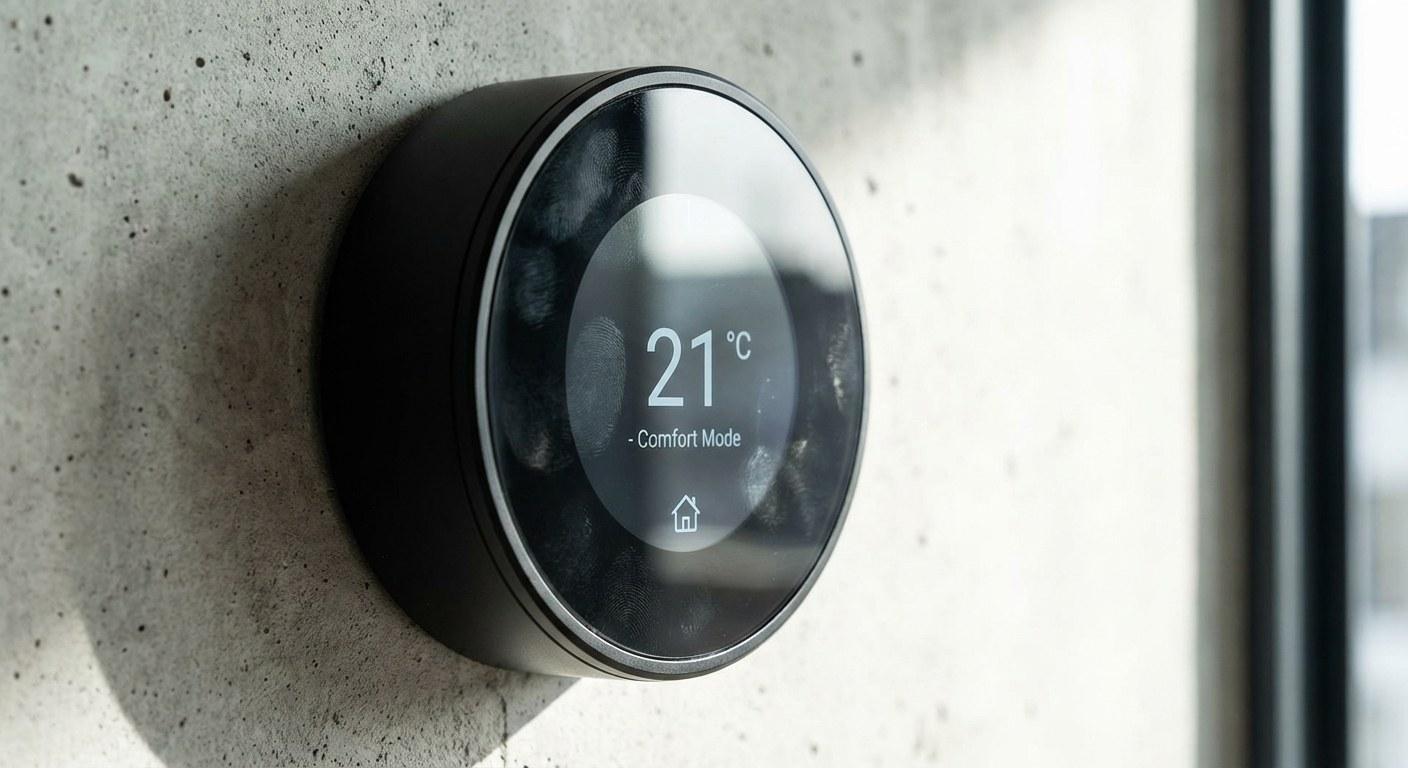
This is a very common issue, and the good news is that it’s rarely a sign of a broken HVAC system. Usually, it’s a communication error, a power issue, or a simple setting that needs to be toggled.
In this guide, we will walk through how to determine if your thermostat supports scheduling and how to get it back on track.
Symptoms of a Scheduling Glitch
How do you know it’s a scheduling error and not a broken furnace or AC? Look for these signs:
- The temperature is right, but the timing is wrong: The system heats and cools effectively, just not when you want it to.
- The display is confusing: You see icons like "Hold," "Permanent Hold," or a lock symbol.
- The app doesn't match the wall unit: Your phone says one thing, but the device in the hallway says another.
- The screen is blank or dim: This often points to a power issue interrupting the internal clock.
Step 1: Identify Your Thermostat Type
Before we fix the schedule, we need to know how your specific device "thinks." Most homes have one of three types:
- Smart Thermostats: These connect to Wi-Fi and are controlled primarily through an app (like Nest, Ecobee, or Honeywell Home).
- Programmable Digital Thermostats: These have a digital screen and buttons but do not connect to the internet. You program them standing at the wall.
- Manual/Analog Thermostats: These usually have a dial or a simple slider. Note: If you have this type, it generally does not support scheduling. You likely need to upgrade to a programmable model to get this feature.
Step 2: Troubleshooting Smart Thermostats (App-Based)
Difficulty: Easy
Time: 20 Minutes
If you control your climate from your phone, the issue is often a synchronization problem between the app and the device on the wall.
- Check the Wi-Fi connection. Look at the thermostat screen. Is the Wi-Fi icon solid? If it’s blinking or missing, the device is offline and cannot receive your schedule updates.
- Update the firmware. Open your companion app. Go to settings and look for a "firmware" or "software" update. Manufacturers often release patches to fix bugs.
- Sync the time zone. In the app settings, ensure the device is set to your current time zone. If the thermostat thinks it’s in a different time zone, your 7:00 AM heat cycle might not start until noon.
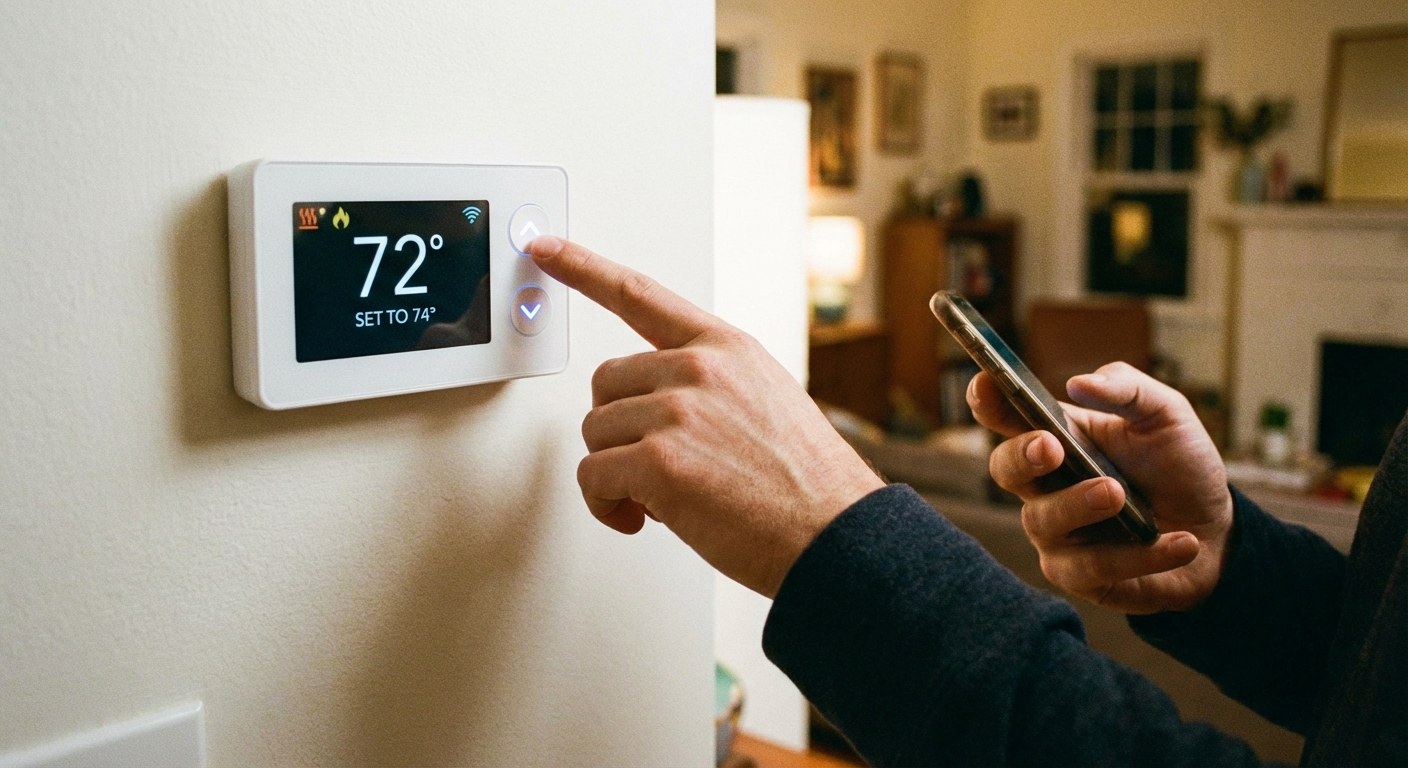
- Check for "Manual" or "Hold" mode. This is the most common culprit. If someone manually adjusted the temperature at the wall, many smart thermostats enter a "Hold" mode that overrides the schedule indefinitely. Switch it back to "Auto" or "Schedule."
- Disable locks. Look for a lock icon in the app settings (often called "child lock" or "screen lock"). This prevents changes from being made at the device level.
- Refresh the power. Remove the thermostat faceplate gently. If it uses batteries for backup, replace them with fresh ones. This forces the device to reboot and reconnect to the hub.
- Re-save the schedule. Sometimes the data gets corrupted. Delete your current schedule in the app, create a simple new weekday schedule, and save it. Watch the thermostat to see if it updates.
Still not working? If the app shows the schedule but the HVAC system ignores it, the internal wiring (specifically the "C-wire" or common wire) might be failing to provide consistent power. This is a good time to contact support or a pro.
Step 3: Troubleshooting Programmable Thermostats (Device-Based)
Difficulty: Moderate
Time: 25 Minutes
If your thermostat is digital but not "smart," all the intelligence lives inside the plastic box on your wall. These are reliable, but the interface can be tricky.
- Check the mode. Press the "System" or "Mode" button until the display clearly reads Auto or Run Schedule. If it says Hold, it is ignoring your programming.
- Unlock the screen. If you see a small padlock icon, the keypad is locked. On many older Honeywell or Emerson models, you can unlock it by holding the "Menu" and "Unlock" keys (or sometimes the up and down arrows) simultaneously for about three seconds.
- Replace the batteries. Even if hardwired, these units rely on AA or AAA batteries to remember the schedule during power blips. Open the battery compartment. If the old batteries test below 3 volts, replace them.
- Set the clock. This sounds obvious, but it’s critical. If the power flickered last week, your thermostat might think it’s 2:00 AM on a Tuesday when it’s actually 5:00 PM on a Saturday. Press the "Clock" or "Time" button to correct the day and time.
- Reprogram the schedule.
- Navigate to the "Program" or "Sched" menu.
- Enter the "Wake," "Leave," "Return," and "Sleep" times for weekdays and weekends.
- Crucial Step: You must press Save or Run to exit. If you just leave the menu, it often reverts to the old settings.
- Verify. Watch the screen for ten seconds. Ensure the target temperature matches what you just programmed.
When to Call a Professional
If you have replaced the batteries, updated the firmware, and verified the "Hold" settings are off, but the system still won't follow orders, the thermostat itself may be malfunctioning.
Safe to try yourself:
- Replacing batteries.
- Resetting Wi-Fi.
- Adjusting app settings.
- Cleaning dust off the interior sensors (gently!).
Call a professional if:
- The screen is blank even with new batteries (possible wiring short).
- The thermostat clicks, but the furnace/AC doesn't turn on (possible relay failure).
- You smell burning plastic near the device.
Time and Cost to Fix
Fixing a scheduling issue is usually very cheap because it’s often a settings or battery problem.
- DIY Cost: $0 – $10 (for fresh batteries).
- DIY Time: 5 – 25 minutes.
- Professional Diagnosis: $75 – $150.
- New Thermostat (if broken): $50 – $250+ (plus installation).
Final Thoughts
Most "broken" schedules are just cases of a thermostat being accidentally set to "Hold" or having an incorrect internal clock. Once you verify the power and the settings, your home should go back to being comfortable automatically.
Staying on top of these small maintenance tasks helps your home run smoothly. For a better way to organize your home’s manuals, track maintenance schedules, and keep notes on which battery size your thermostat needs, download the Casa app. It’s the easiest way to feel prepared for whatever your home throws at you.